Getting started
A tour of the DraftMesh window: the files pane, the four document modes, the comments panel, version history, workspaces, and how attribution works.
DraftMesh is a home for the documents you and your team — including AI assistants — write together. Every document is a plain file on your disk. DraftMesh never locks your writing into a database: you can open, edit, move, or back up the files with any tool you like, and DraftMesh will pick up the changes.
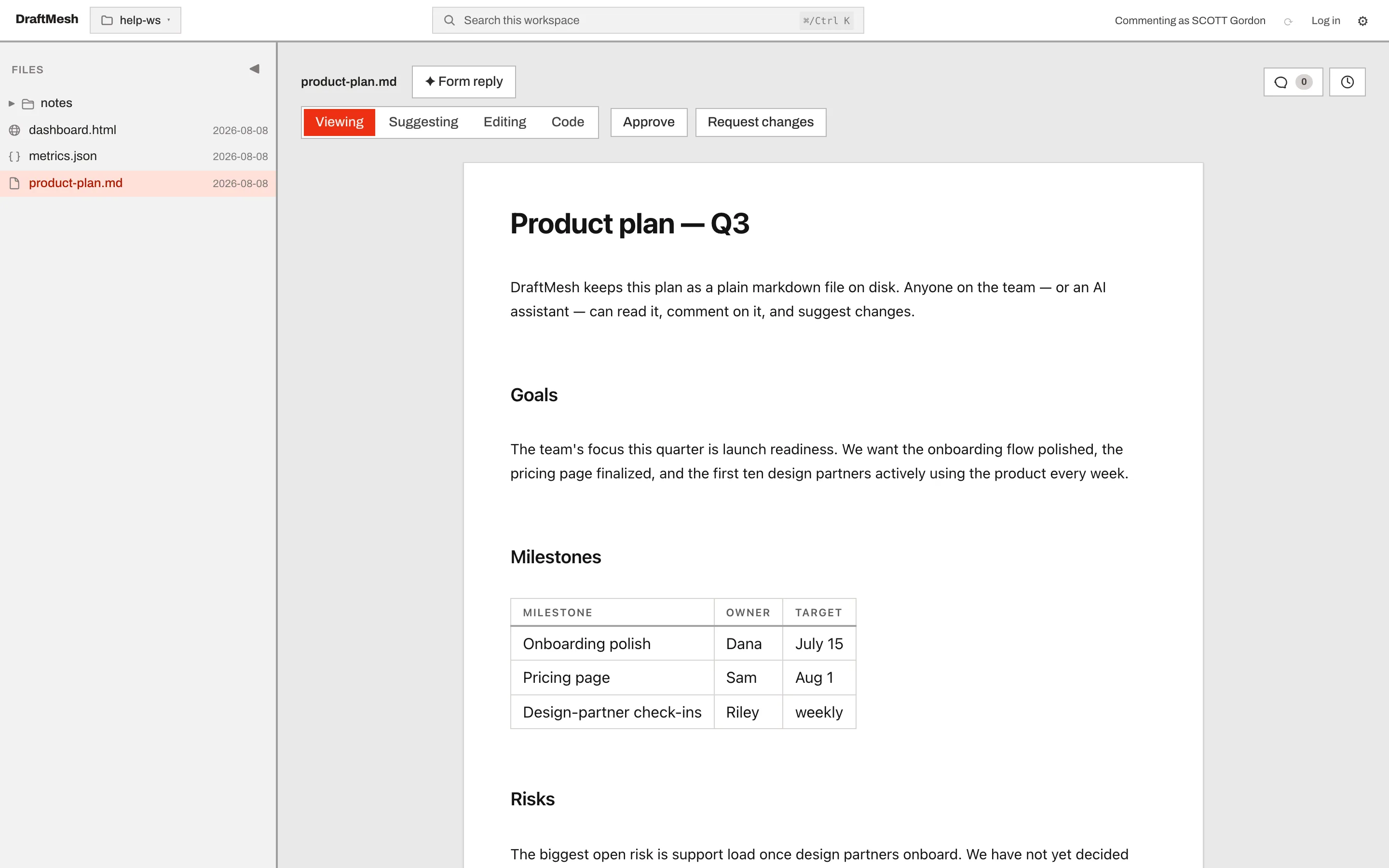
The window at a glance
- Header — the workspace switcher (folder icon), workspace search (
⌘ K/Ctrl K), your name, sync controls, and the ⚙ Settings menu. - Files pane (left) — every document in the open workspace. Click a file to open it. Drag the divider to resize, or collapse the pane with the ◀ button.
- Document (center) — the document itself, with a toolbar for switching between Viewing, Suggesting, Editing, and Code.
- Comments (right) — comments and suggestions on the open document. Toggle between a List and an In-place view.
- Version history — the clock button opens the document’s saved versions; every save is kept and any version can be restored.
Workspaces
A workspace is just a folder on your machine. Open the workspace switcher in the header to pick one, register a new folder by path, or turn sync on and off per workspace.
On a phone
Open DraftMesh on a phone and you get a different layout: a queue of what’s waiting on you — sign-offs, replies, suggestions — instead of the full editor. See On your phone.
Your name
Comments and edits are attributed to you. Set your display name under ⚙ Settings → Your name. Without an account the attribution is self-asserted (it says whatever you type); signing in attributes your work to your verified account identity instead.
Nothing leaves this device unless you say so
DraftMesh works fully offline with no account: reading, editing, commenting, history, and restore all work locally. Syncing to the cloud is a per-workspace opt-in — see Workspaces & sync.